Import-Export And Scripting
Executing a script or plugin that integrates import/export functions in Pixyz Studio will lead to a Captcha mechanism being raised at each import/export function call.
It is because importing and exporting files is possible using the Python API, but is limited in Pixyz Studio, as batching files is not allowed (see Terms & Conditions).
Pixyz Scenario Processor is the Pixyz dedicated tool for batching/automation purposes.
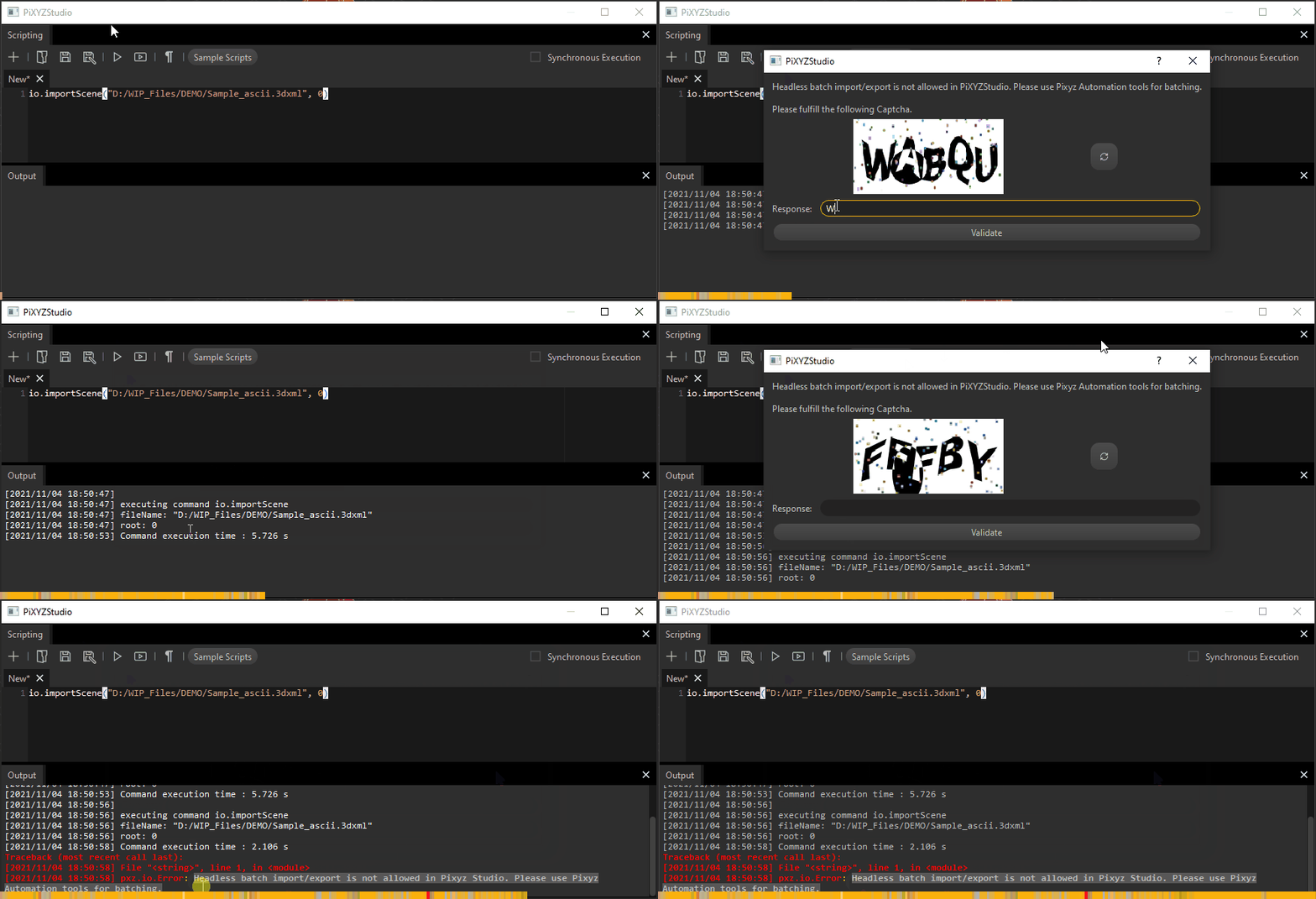
Nonetheless, plugins integrating import/export functions can be run in Pixyz Studio for testing purposes, when creating a scenario meant to be deployed in Pixyz Scenario Processor.
Tip
Executing an import/export function in a plugin (not a script) can be done once per plugin execution without a Captcha being raised. This is for example for users/developers wishing to create their own import dialog (like the Guided import). Also, using the io.importFiles() function is a way to import multiple files all at once (allowing the import process to be parallelized, in most cases).
How To
The following import/export functions, part of the IO module of the scripting API, can be used to import/export files: